
[HOW TO] Calibrate Reset the New Genius tool touchscreen
The steps below can be used to fix the screen of the tool in case is unresponsive or displays inverted colors |
Level 1 procedure: |
| — Power ON the New Genius tool, — Enter the menu TOOLS → SETUP → DISPLAY → TOUCH PANEL — Perform the Touch Panel Calibration Wizard by clicking on each square appearing in the corners (top right / bottom left / top left / bottom right). |
| if the problem still persists perform the steps listed below |
Level 2 procedure: |
| — New Genius tool must be powered OFF, — Gently press and hold a finger in the middle of the New Genius touchscreen — While keeping the screen pressed connect power the unit up — Wait until the Touch Panel Calibration Wizard appears — Select the white or the black square depending on the caption you have |
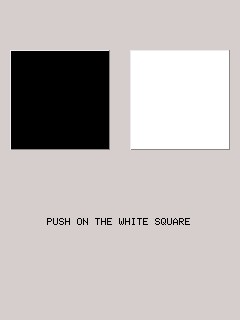 |
| — Perform the Touch Panel Calibration Wizard by clicking on each square appearing in the corners (top right / bottom left / top left / bottom right). |
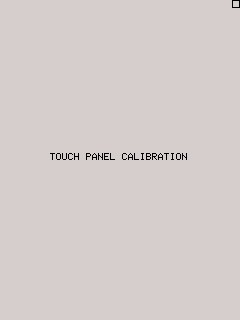 |
| — Complete the operation pressing OK |
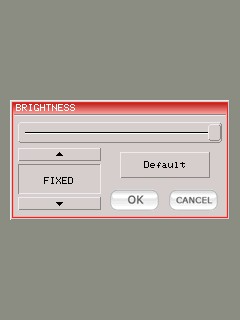 |
| — Connect the device to the Pc and perform an upgrade software. |
| if the problem still persists perform the steps listed below |
Level 3 procedure: |
| — Remove the 4 anti-slide rubbers present on the backside of the tool itself, — Unscrew of a quarter turn the screws with a Philips head screwdriver, — Perform the procedure level 2 again. |
| If the problem still persists please contact the Race Technical Support using the ticket system and provide a detailed description of the New Genius tool touchscreen problem. |